Event communication
Requirements
| ONES |
|---|
| v3.7.1+ |
Overview
Event system is one of the main ways of communication between components. Custom components can trigger arbitrary events, and pages that reference components can listen to these events. We provide a set of event communication libraries that can help you communicate across modules within the same plug-in (all communication modules need to be mounted). You can also trigger certain events in the ONES through events.
Usage
Step 1: Installation dependency
Go to the /web directory and install the package with the following command:
- npm
- Yarn
- pnpm
npm install @ones-op/event
yarn add @ones-op/event
pnpm add @ones-op/event
Step 2: Custom listener
Add a custom listener. When the specified event type is dispatch, the listener callback will be executed. cannot be used across plugin
import { OPPluginListener } from '@ones-op/event'

useEffect(() => {
  const cancelFn = OPPluginListener('onChange', ({ value }) => {
    return {
      state: OPListenerProcessResultState.SUCCESS,
      data: value + 1,
    }
  })
  return () => cancelFn()
}, [])
When the component is destroyed, be sure to call the unlistening function to avoid taking up memory and generating some unexpected BUG.
Step 3: Dispatch event
Dispatch an event of the specified type and return the Promise object returned by the OPPluginListener processing function. cannot be used across plugin
import { OPPluginDispatch } from '@ones-op/event'

OPPluginDispatch('onChange', { value: 0 }).then((result) => {
  console.log(`listener processed value: ${result[0].data}`)
})
For the definition of specific parameters, please refer to: @ones-op/event
Examples
Example ONE: Activate the Global Progress Manager
Step 1: Add a slot
Take 【My Workspace】-【Overview】 as an example, execute the following instructions to select ones:workspace:overview
npx op add module
Step 2: Dispatch event
import { ConfigProvider, Button } from '@ones-design/core'
import { OPDispatch } from '@ones-op/event'
import React from 'react'
import ReactDOM from 'react-dom'

import './index.css'

function App() {
  const handleClick = () => {
    OPDispatch('invoke:ones:global:progressManager')
  }

  return <Button onClick={handleClick}>Activate Progress Manager</Button>
}

ReactDOM.render(
  <ConfigProvider>
    <App />
  </ConfigProvider>,
  document.getElementById('ones-mf-root'),
)
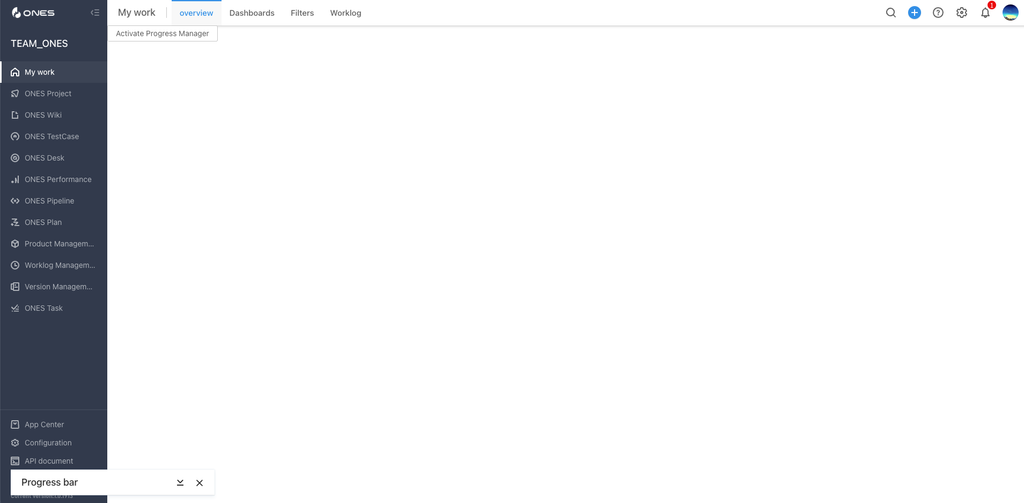
Step 3: Triggered on ONES
Log in to ONES, 【My Workspace】-【Overview】has been replaced by the plugin, click the button Progress Manager to trigger. As shown in the picture:
Example Two: Trigger member list refresh
Requirements
| ONES |
|---|
| v3.11.15+ |
Support for all member lists in ONES
Step 1: Add a slot
Take 【Project Management】-【Member】-【New Action Button】 as an example, and execute the following instructions to select ones:project:component:member:action:new
npx op add module
Step 2: Dispatch event
import { ConfigProvider, Button } from '@ones-design/core'
import { OPDispatch } from '@ones-op/event'
import React from 'react'
import ReactDOM from 'react-dom'

import './index.css'

function App() {
  const handleClick = () => {
    OPDispatch('ones:event:memberList:refresh')
  }

  return <Button onClick={handleClick}>Refresh member list</Button>
}

ReactDOM.render(
  <ConfigProvider>
    <App />
  </ConfigProvider>,
  document.getElementById('ones-mf-root'),
)
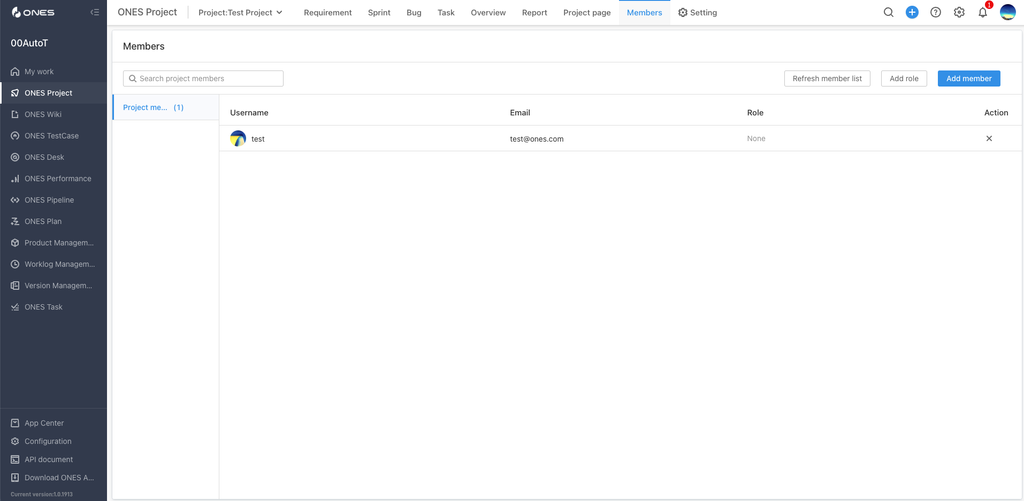
Step 3: Triggered on ONES
Log in to the ONES, enter the top column operation area of 【Project Management】-【Member】, click the button Refresh member list, and find that the member list data has been updated. As shown in the picture