Scene: System side component
Scene Description
Add a functional component to the right side of the top bar of the system, and hope to control access rights, and hide this component for those who do not have access rights.
Solution
Implementation idea
Use the slot on the right side of the top bar of the system to add a new component, use the custom permission point ability to add a plug-in permission point, and associate the newly added component with the custom permission point.
Effect
People with permission can see that a new component has been added to the right side of the top bar of the system.
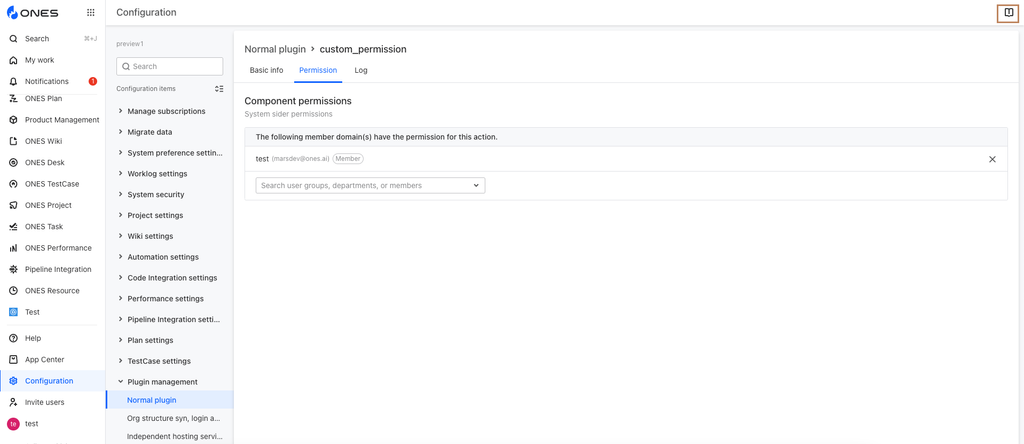
There is no change on the right side of the top bar of the system for people without permission.
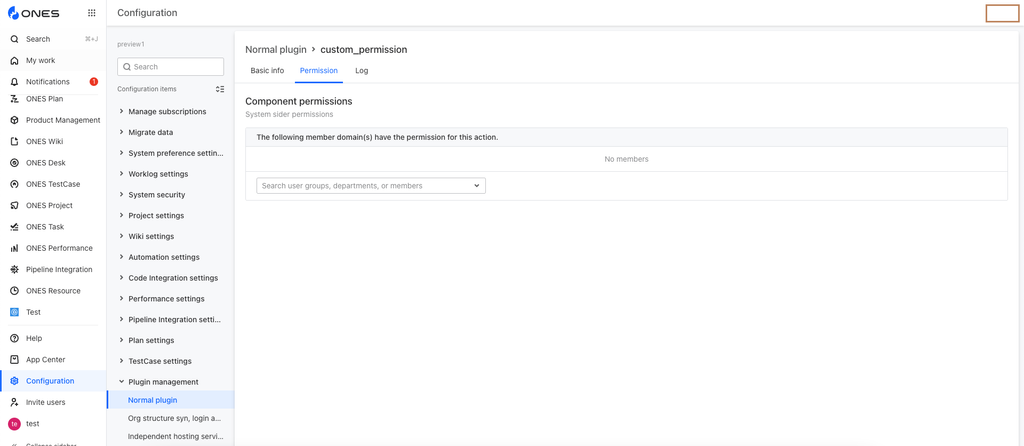
Plugin development
Step 1: Add slot
Use the npx op add module to add a slot of type ones:layout:header:action:new.
Step 2: Add Component
Here it is simply displayed in the form of icons, without adding specific logic.
Enter the /web directory of the plugin project, and execute the following command for dependent installation:
npm i '@ones-design/icons'
Add icon
import { Book } from '@ones-design/icons'

ReactDOM.render(
  <ConfigProvider>
    <Book />
  </ConfigProvider>,
  document.getElementById('ones-mf-root')
)
Step 3: Configure custom permission points
Add permission point configuration in the plugin's configuration file
service:
	...
  permission:
    - name: Component permissions
      field: component_permissions
      desc: System sider permissions
Step 4: Slot associated permission point
module configuration adds permission field
modules:
  - id: ones-layout-header-action-new-mYbE
    title: test
    moduleType: ones:layout:header:action:new
    entry: modules/ones-layout-header-action-new-mYbE/index.html
    permission: component_permissions
Step 5: Configure permissions
Configure permissions on the plugin details page
